How to make an interactive worksheet that marks itself
An interactive worksheet is one students answer on a screen and that checks their answers against your key, so they get feedback while the exercise is fresh and you get the marks without a pile of paper. This guide shows the three ways to make one, the exercise types that work best on a screen and how to get it to your students.
6 min read · Updated
In this guide
- What makes a worksheet interactive, and why it is worth it
- Three ways to start: a PDF, a topic or a blank page
- Which exercise types work best on a phone
- How to make sure it marks fairly
- How to share it with your class, with or without email
What makes a worksheet interactive
A PDF on a screen is still a paper worksheet: students copy the answers into a notebook and you mark them later. An interactive worksheet has three things a PDF doesn’t:
- Students answer in the worksheet itself: they type into a gap, tap the wrong word, put words in order or pick an option.
- Every answer is checked against your key, so the marks are ready when they hand in.
- In practice, students see straight away whether they got it right, and get another try.
The work is in the answer key, not in the design. Once the key is right, the worksheet marks itself for every class you give it to.
Three ways to start
In AI Worksheets, New worksheet gives you three ways in. Pick the one that matches what you already have:
Convert a PDF
Upload a worksheet or a textbook page as a PDF, and AI turns its exercises into interactive ones with their answers. If you made the worksheet in Word, Google Docs or Canva, save or download it as a PDF first.
Generate from a prompt
Describe the topic and the level, and choose up to five exercise types and how many questions you want, up to twenty. You can also paste a text for AI to work from, such as a reading passage.
Start from scratch
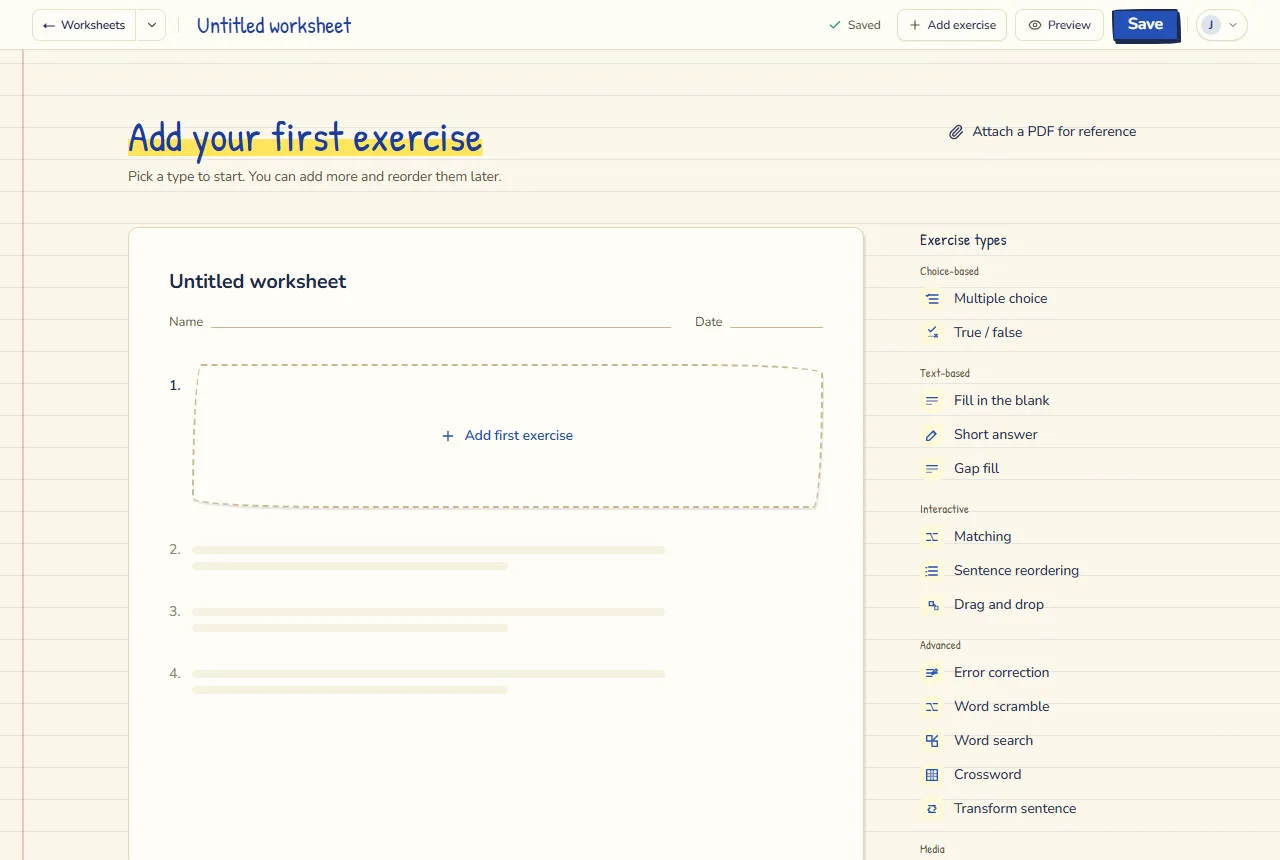
Add exercise offers 16 exercise types. Write each question and its answer yourself.
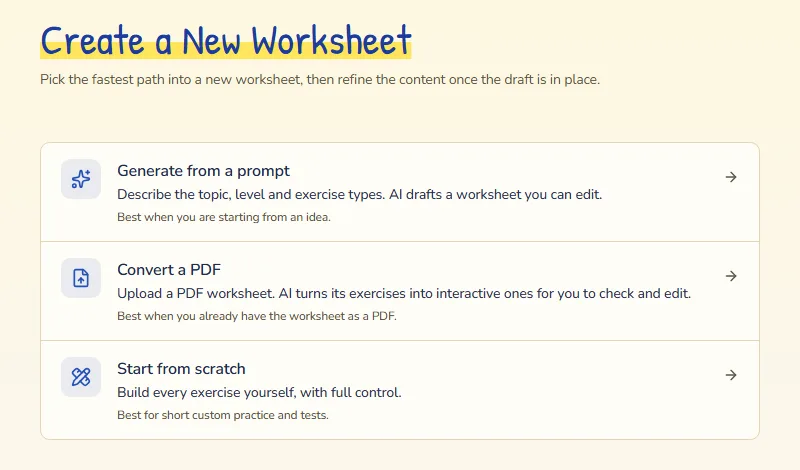
Whichever you choose, you end up in the same editor, and you can add exercises by hand to a worksheet AI made. The textbook PDF guide goes through the PDF route step by step.
Choose exercise types that work on a screen
Some paper exercises work better on a screen than others. Typing a long answer on a phone is slow; tapping is fast. Mix the two on purpose:
- To recognise the right form: Multiple choice, True / false, Matching, or Gap fill with a word bank.
- To produce it: Fill in the blank and Transform sentence, where students type the word or the sentence.
- To notice mistakes and word order: Error correction, where students tap the wrong word and fix it, and Sentence reordering.
- For skills: Reading comprehension and Listening, with questions under the text or the audio, and Writing for a longer answer.
- For a warm-up: Crossword and Word search.
Make sure it marks fairly
Before you share it, check every question and its answer in the editor. Two settings make the difference between a worksheet students trust and one they argue with:
- Also accept adds other right answers, such as a contraction or a second word order.
- Answer checking: typed answers ignore capitals, accents, punctuation and extra spaces by default. Make a question stricter when the accent or the capital is the point of it.