How to mark writing faster with AI, without giving up your judgement
Writing is where marking time goes, and where your judgement matters most. This guide shows a way to let AI do the first read of every answer, so you spend your time deciding instead of starting from a blank page.
6 min read · Updated
In this guide
- What AI is good at in marking, and what stays with you
- How to set up a writing task students can do well
- Which assignment settings turn the AI drafts on
- How to check, change and return marks in a few clicks
- What your students see, and when
Split the work: AI drafts, you decide
Marking a piece of writing has two parts. The first is reading it closely: spotting the tense that slipped, the missing article, the paragraph that never gets to the point. The second is judgement: what this student needed to show, how far they got, and what to say so they improve.
AI is useful for the first part and a poor substitute for the second. So in AI Worksheets the AI never gives a mark on its own. It drafts a mark and a comment for each answer, and they wait for you. Your students see only what you have checked and returned.
Set up a task students can do well
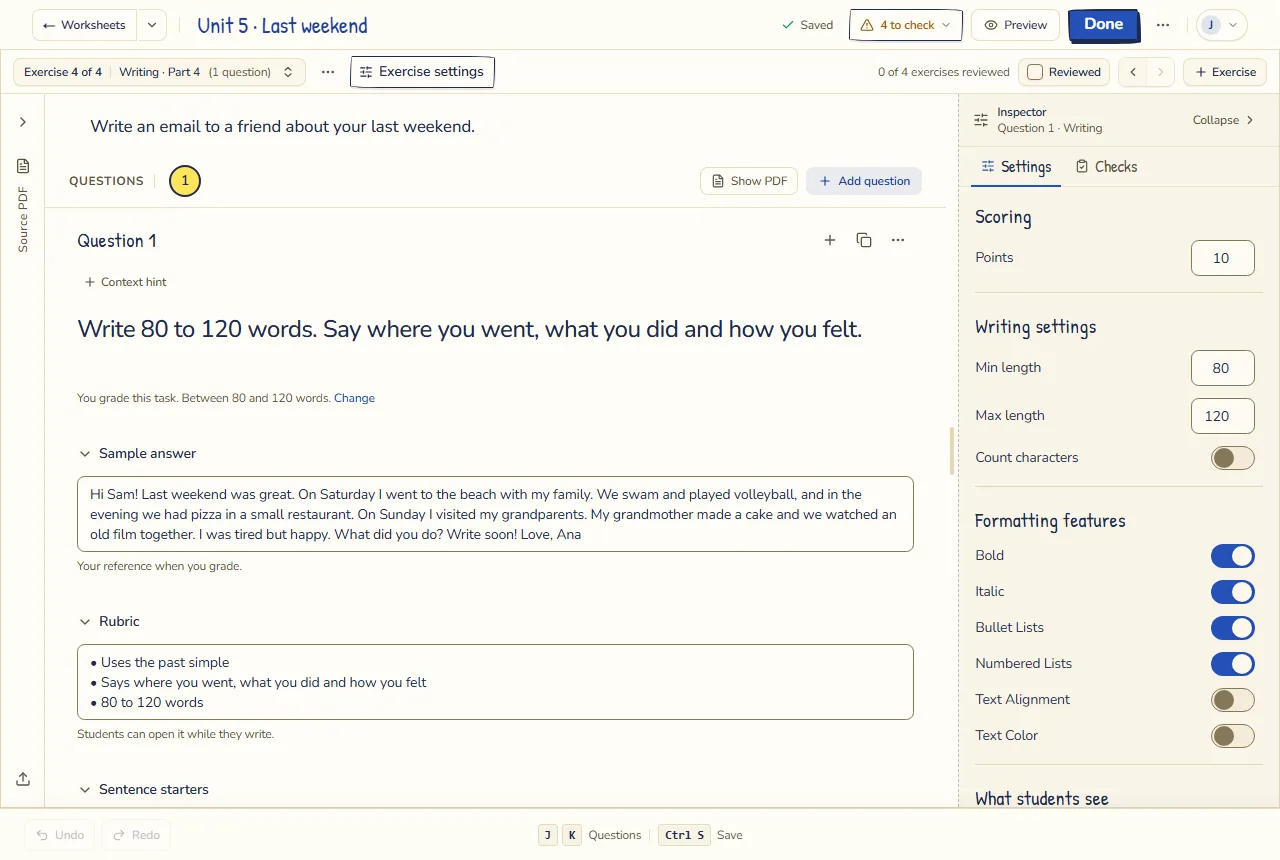
A good writing task is half the marking: a clear prompt gets answers you can compare. When you add a writing exercise, or it comes from your PDF, you can give it:
- The prompt, which every writing task needs: what to write, for whom and why.
- A length: a minimum, a maximum or both, in words or in characters.
- Rubric: what you will look at. Students can open it while they write.
- Sentence starters, which students can show when they don’t know how to begin.
- Sample answer: your reference when you mark.
Turn the AI drafts on
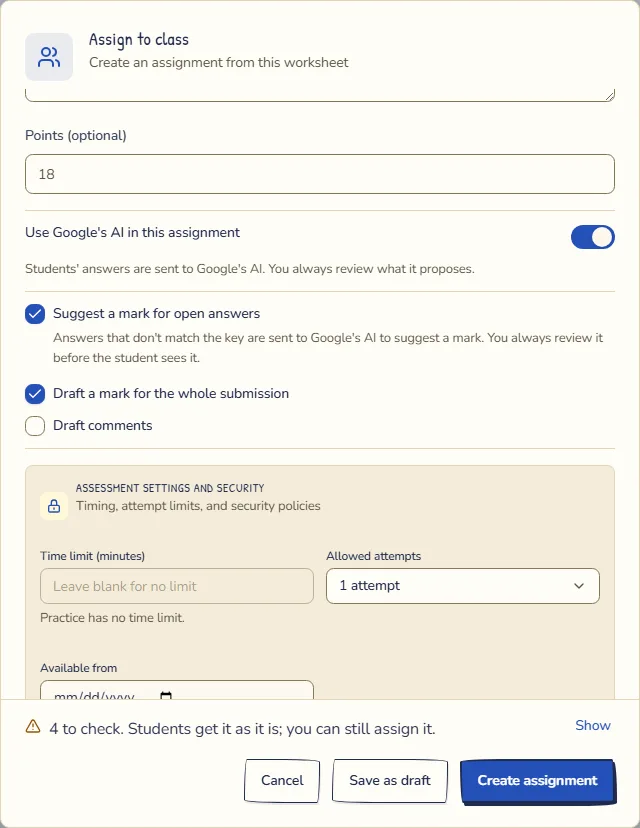
The AI settings live on each assignment, so you choose per class and per task. When you assign the worksheet, look for these:
- Use Google’s AI in this assignment is the main switch. With it off, nothing is sent to the AI.
- Suggest a mark for open answers (on by default): short answers, transformations and reading or listening answers that don’t match your key get a suggested mark.
- Draft a mark for the whole submission (off by default): turn it on for writing. When a student hands in, the AI drafts a mark and a comment for each answer, the writing included.
- Draft comments (off by default): an overall comment on the student’s work, for you to edit.
Answers that match your key are marked by your rules straight away, without the AI. The free plan includes AI marking for 50 submissions a month and 20 a day; a student’s whole hand-in counts as one. If you reach the limit, nobody is turned away: those answers simply wait for you to mark them.
The AI writes its comments for the student in the language of the worksheet’s instructions: instructions in Spanish get comments in Spanish, even when the student writes in English.
Check, change and return
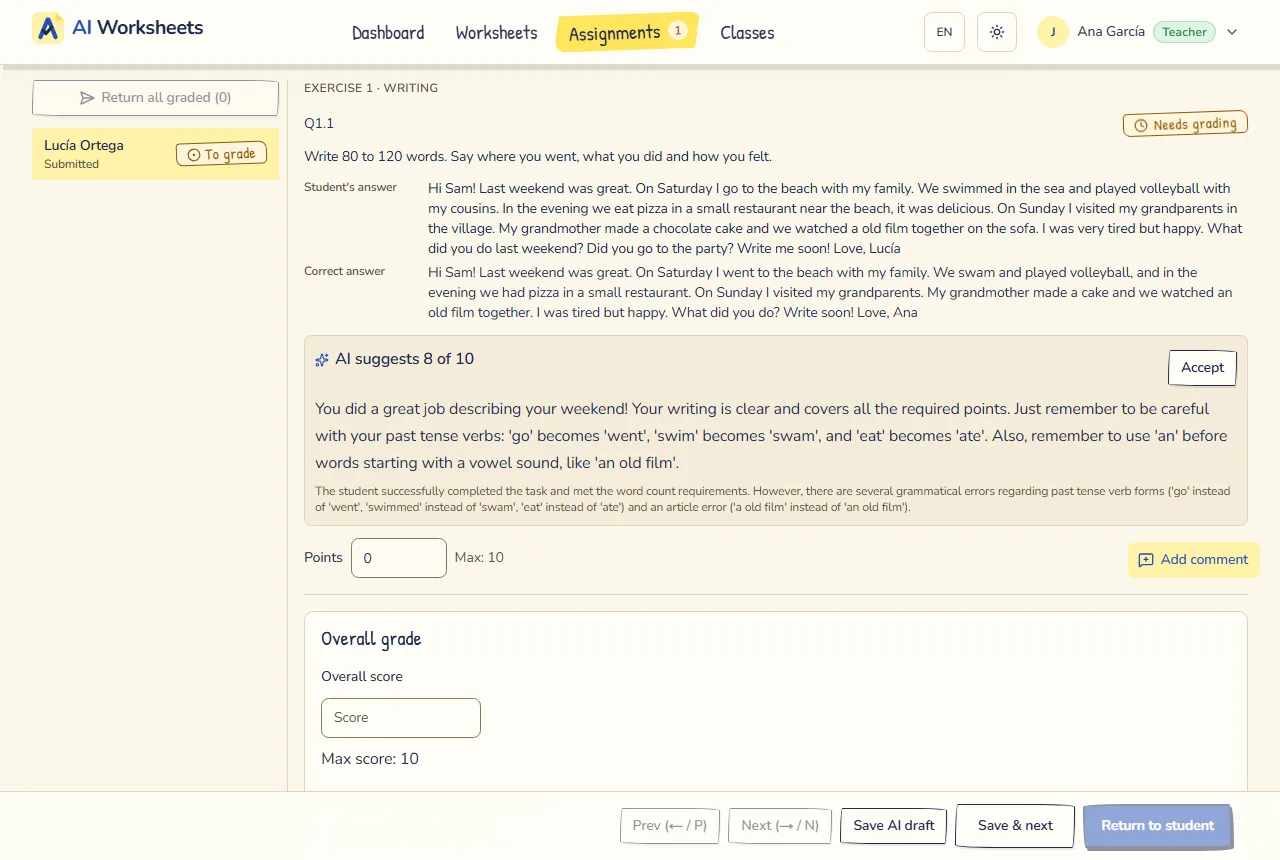
Open a student’s hand-in from the assignment. Under the writing you see the AI’s proposal, such as AI suggests 8 of 10, the comment it wrote for the student and, in smaller print, its reason, which only you see. Your own mark goes in Points below it. For each answer:
Read the answer first
Make up your own mind before you read the proposal, at least for the first few students. It keeps the AI from setting your standard.
Accept, then change what you disagree with
Accept copies the AI’s points and comment into the answer’s Points and comment, where you change them like your own marking: another number, a line of your own, or no comment at all.
Mind the comment when you change the mark
A comment written for an 8 rarely fits a 5. If you change the points, read the comment again before you save.
Save, then return
Save & next saves your marking and opens the next student. Nothing reaches the student until you press Return to student, or Return all graded for the class.
Short answers and other open answers that don’t match your key work a little differently. Their suggested marks are counted at the top of the page, and each one says Waiting for you. Accept keeps the mark and the comment; Edit lets you change them first, and if you change the points, the AI’s comment is dropped unless you tick Send the AI’s comment anyway.
Two shortcuts, for when you trust the proposals on a task: Accept all AI marks accepts the suggested marks on short answers at once, and Save AI draft keeps the AI’s whole draft as your marking, with any points or comment you changed. Use them on answers you have read, not instead of reading them. If a hand-in has no draft yet, Request AI grade asks for one.
What your students see
While you are checking, a student sees the answers that were marked by your key and, for the rest, that they are waiting for the teacher. None of the AI’s words reach them before you return the work. After that they see your marks and your comments.
In Practice mode the instant checks only use your key. Open answers and writing are marked after the student hands in, like in a test.
Habits that save the most time
- Mark one task across the whole class rather than one student’s whole worksheet at a time: your standard stays steady.
- Keep a few comments of your own for what you see every week, and add them to the AI’s draft.
- Look harder at the borderline answers, where a point either way changes the grade. The clear ones go fast.
- Mix the exercise types: a worksheet with gap fills and transformations plus one short writing task gives you most of the marks automatically, and one answer per student to read.
If your writing tasks come from the textbook, start with turning a textbook unit into homework that marks itself.