How to turn a textbook unit into homework that marks itself
You already have the exercises: they are in the book you chose for your class. This guide shows how to turn those pages into homework your students do on a phone, marked against your answer key, with the marking rules a language teacher needs.
7 min read · Updated
In this guide
- Which pages work best and what the free plan covers
- How to check the answer key before students see it
- Fair marking for accents, capitals, punctuation and typos
- When to choose Practice and when to choose Test
- How students join, with or without an email address
Why homework that marks itself
Marking a class set of gap fills takes an evening and teaches you little you did not know. Students also learn more from feedback they get while the exercise is fresh than from a sheet returned a week later.
Generic AI tools solve this by writing new exercises from a topic. The catch is that you chose your textbook for a reason: its grammar sequence, its vocabulary, its level. Starting from your own pages keeps the homework in step with the lesson.
Choose the pages
Pick the pages you would have set as homework anyway. A few things make the result better:
- Exercises with clear answers: gap fills, multiple choice, matching, true/false, error correction, sentence transformation and reading questions all become interactive.
- One unit or one lesson per worksheet, so the results tell you something about that lesson.
- A digital PDF, or a clear, straight scan. A blurred photo of a page is harder to read for anyone, AI included.
- A PDF of up to 10 MB. Each page counts as one AI page: the free plan includes 20 a month and 10 a day.
Upload the PDF
Start a worksheet from a PDF
On a computer, upload the file. Creating and editing worksheets needs a bigger screen; your students can use a phone.
Let it read the page
You see the progress as it reads the PDF and builds each exercise. If a run fails, you can try again, keep the exercises that came through, or delete the draft; the pages of a failed run are not counted.
Open the result in the editor
Each exercise arrives with its instructions, its questions and an answer key, in one of sixteen exercise types.
Check the answer key
This is the step that makes the homework trustworthy, and the reason to do it on your own material: you know what the right answers are. The editor sorts the exercises for you:
- Needs you: something is unfinished, such as a question without an answer or a missing picture or audio. These have to be fixed before you can assign the worksheet.
- To check: exercises the AI built that you have not ticked as reviewed yet, with the reason when it saw one (a question that looks wrong, a page that was hard to read).
- Ready to assign: everything else.
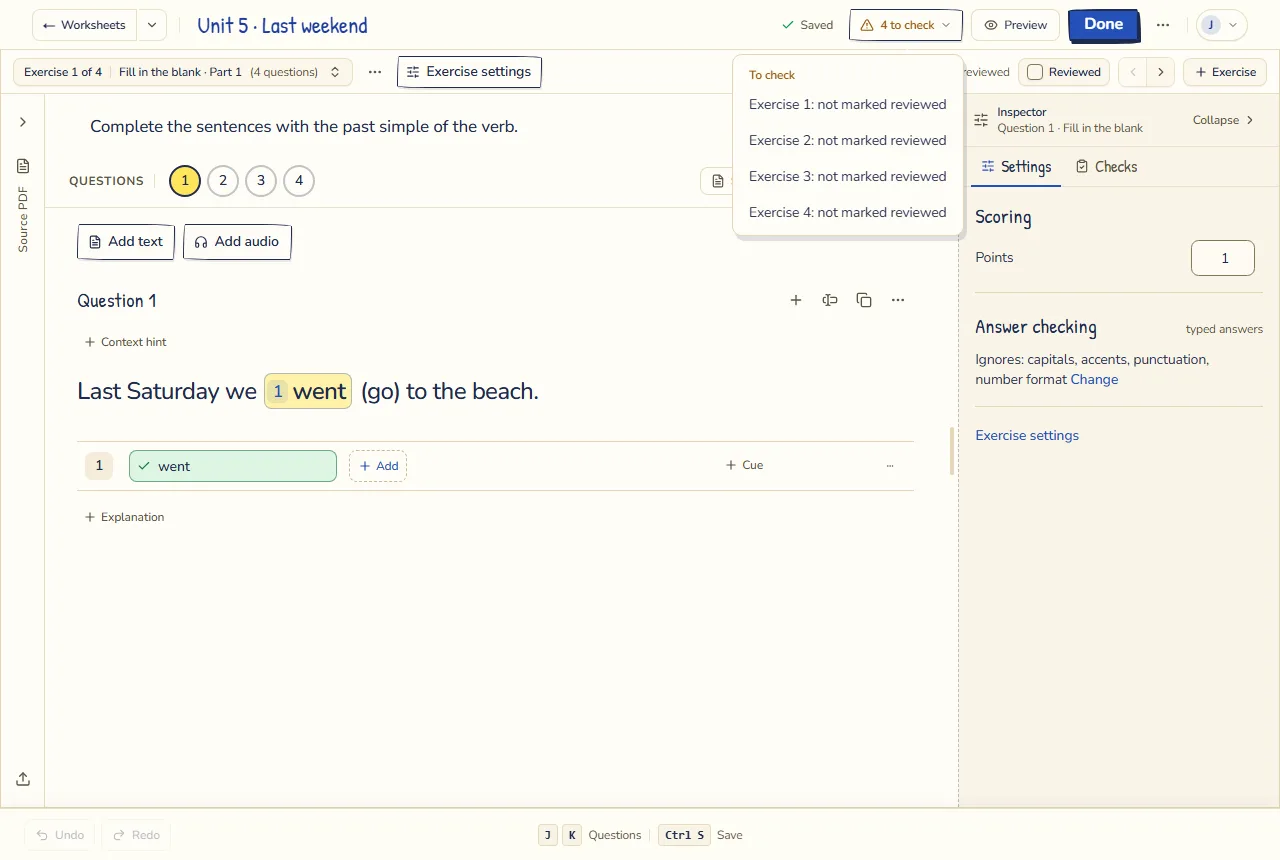
Open each exercise and read its key. Where more than one answer is right ("I’ve been" and "I have been"), add it to the key: in a gap, press Add beside the answer; in a short answer or a transformation, use Also accept. Then tick Reviewed. The tick is for you: nothing waits for it, and you can assign before you have ticked everything.
Set fair marking rules
A language teacher rarely wants a strict letter-by-letter comparison. In the inspector beside each question, Answer checking says what the question ignores. By default a typed answer ignores capitals, accents, punctuation and number format, and accepts no typos. Press Change to set it for that question:
- Ignore: capitals, accents, extra spaces and number format, each on or off.
- Ignore punctuation: no, only at the end, or all of it.
- Typos: none, one letter, or a little more on longer words.
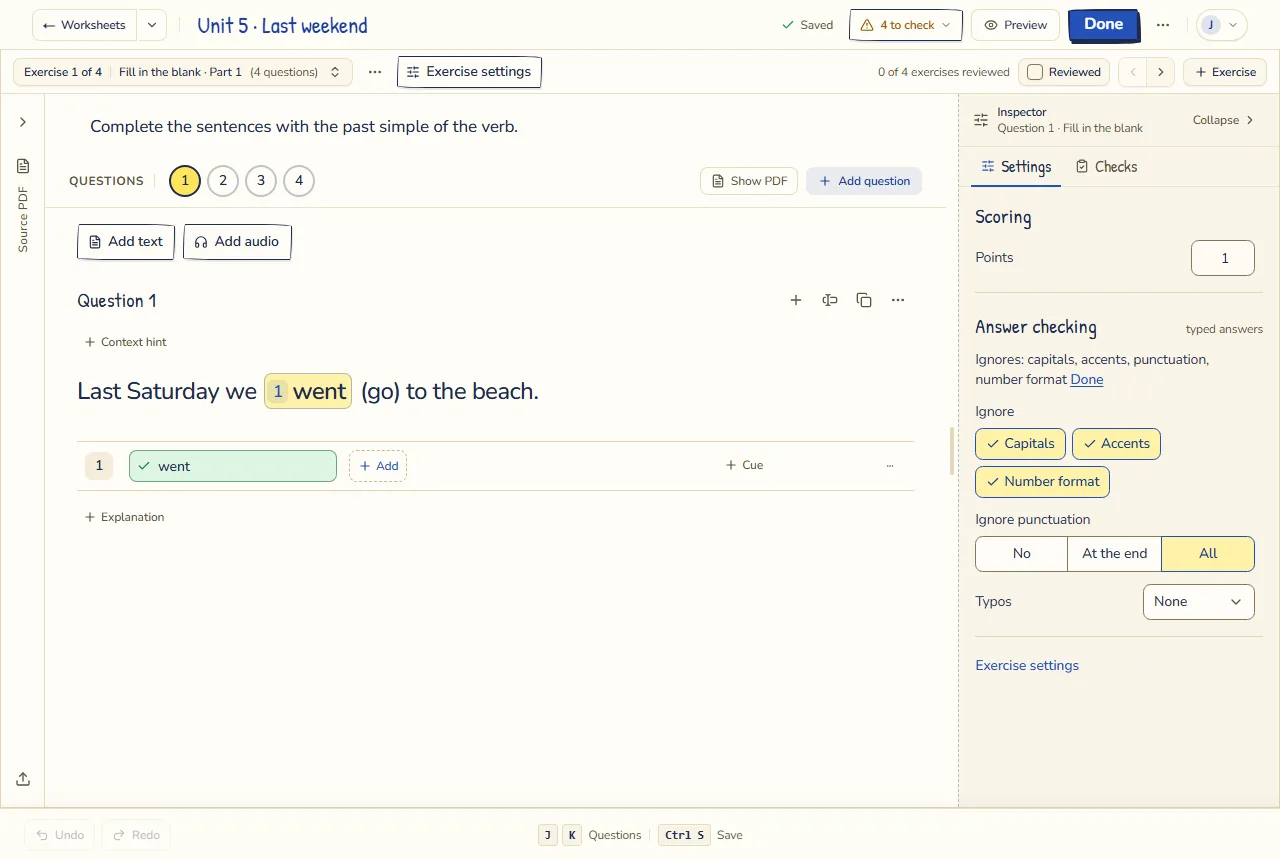
In a Spanish class where the accent is the point of the exercise ("está" or "esta"), switch Accents off the ignore list for that question. In a spelling exercise, keep Typos at none.
Gaps are marked one by one: a sentence with three gaps and two right answers earns two thirds of its points, never the full marks. For short answers that don’t match the key, choose what happens: the AI suggests a mark for you to check, you review it yourself, or it is marked wrong. If you would rather mark a short answer yourself every time, set Who checks the answer to I check it.
Practice or Test
When you assign the worksheet to a class, pick the mode:
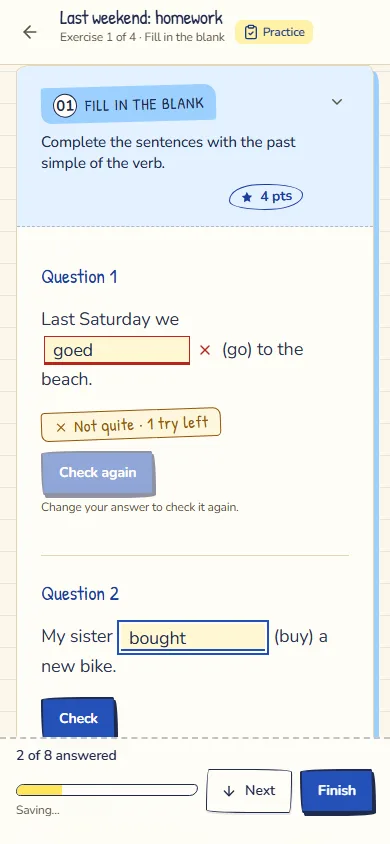
- Practice is for homework. Students check each answer and get a second try (one try on true/false and on questions with two options). A right second try earns half the points on questions worth two or more. When the tries run out, they see the right answer.
- Test is for marks that count. Students see nothing while they work. You can add a time limit, choose the number of attempts and shuffle the questions for each student.
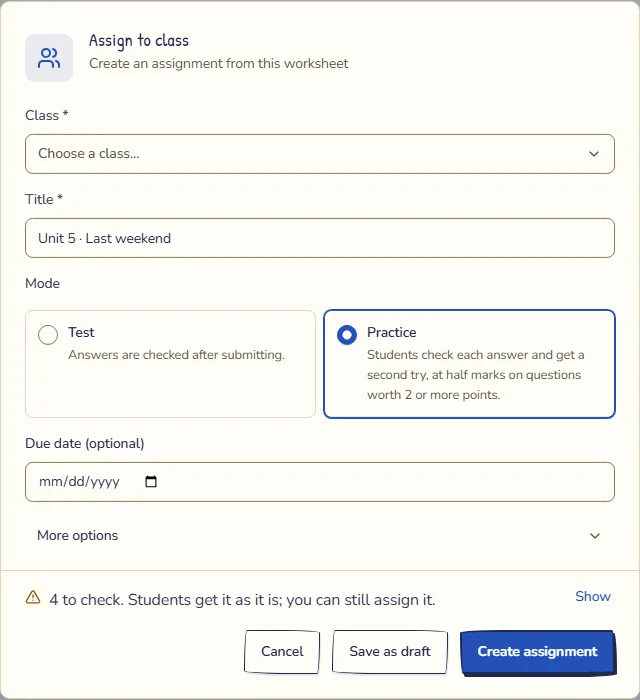
With Show results immediately on (the default), students see their score when they hand in. Turn it off to show results only when you return the work or the due date has passed. Either way, the answer key appears only once the attempt is settled, so it can’t be passed around while others are still working.
Get your students in
Students join a class in one of two ways:
- A class code of six characters, with no 0/O or 1/I to mix up. You choose how long it works and whether you approve each student who joins.
- Accounts without email: paste your class list, and print the logins on cards. Younger students and schools without student email use this way. See student logins without email.
Students do the homework on whatever they have: a phone, a tablet or a computer. On a phone, the page fits the screen and the answer controls are big enough to tap.
After they hand in
Answers that match your key are marked as they come in, and you see the results per student and per question. Open answers and writing wait for you, with a draft mark from the AI if you turned it on. The next guide covers that part: how to mark writing faster with AI.