How to mark exams faster, without marking worse
Most of the time spent marking an exam goes on answers a key could have marked, and on the same mistake marked thirty times. This guide shows how to let the key do that part fairly, fix a key once for the whole class, and keep your own time for the answers that need you.
6 min read · Updated
In this guide
- Where exam marking time really goes
- How to write keys that mark fairly on their own
- How to accept a good answer for the whole class in one click
- How AI can draft marks for open answers, and what stays with you
- How to use the results to plan the next lesson
Know where the time goes
An exam has three kinds of answers, and each takes a different kind of time:
- Answers with one right answer, or a few: a verb form, a chosen option, a word in a gap. A key can mark these.
- Short open answers: a sentence rewritten, a reason given. Several answers can be right.
- Writing, where your judgement is the mark.
The fastest win is to design the exam so most points sit in the first kind, and to keep one short writing task where your judgement matters. Then make sure the key marks the first kind fairly, so you never have to check it.
Write keys that mark fairly on their own
In AI Worksheets, every answer that matches your key is marked the moment a student hands in. By default a typed answer doesn’t lose marks for capitals, accents, punctuation or an extra space, and 3.5 and 3,5 count as the same number. A contraction and its full form, like didn’t and did not, count as the same answer too, unless your instructions ask for one of them. For a short answer or a sentence transformation you can change that under Answer checking:
- Typos: allow one or two wrong letters, for a vocabulary test where spelling isn’t the point.
- If it doesn’t match: AI suggests a mark for you to check, I review it leaves it to you, and Marked wrong marks it wrong.
Give more points to the questions that test more, and let part marks do their job: matching, gap fills with several blanks and putting things in order give marks for each part a student gets right.
Fix a key once, for the whole class
Every key misses an answer sooner or later: "this Saturday" where your key only had "on Saturday". Instead of changing the mark on each paper, accept it once:
Find it
On the assignment’s Questions tab, open the answers marked wrong under a question. You see every wrong answer and how many students gave it.
Accept it
Accept for everyone adds it to this assignment’s key and gives the points to every student who wrote it. Tick Also add it to the worksheet to keep it for next time.
Return the work
The new marks are saved straight away, and students see them when you return the work.
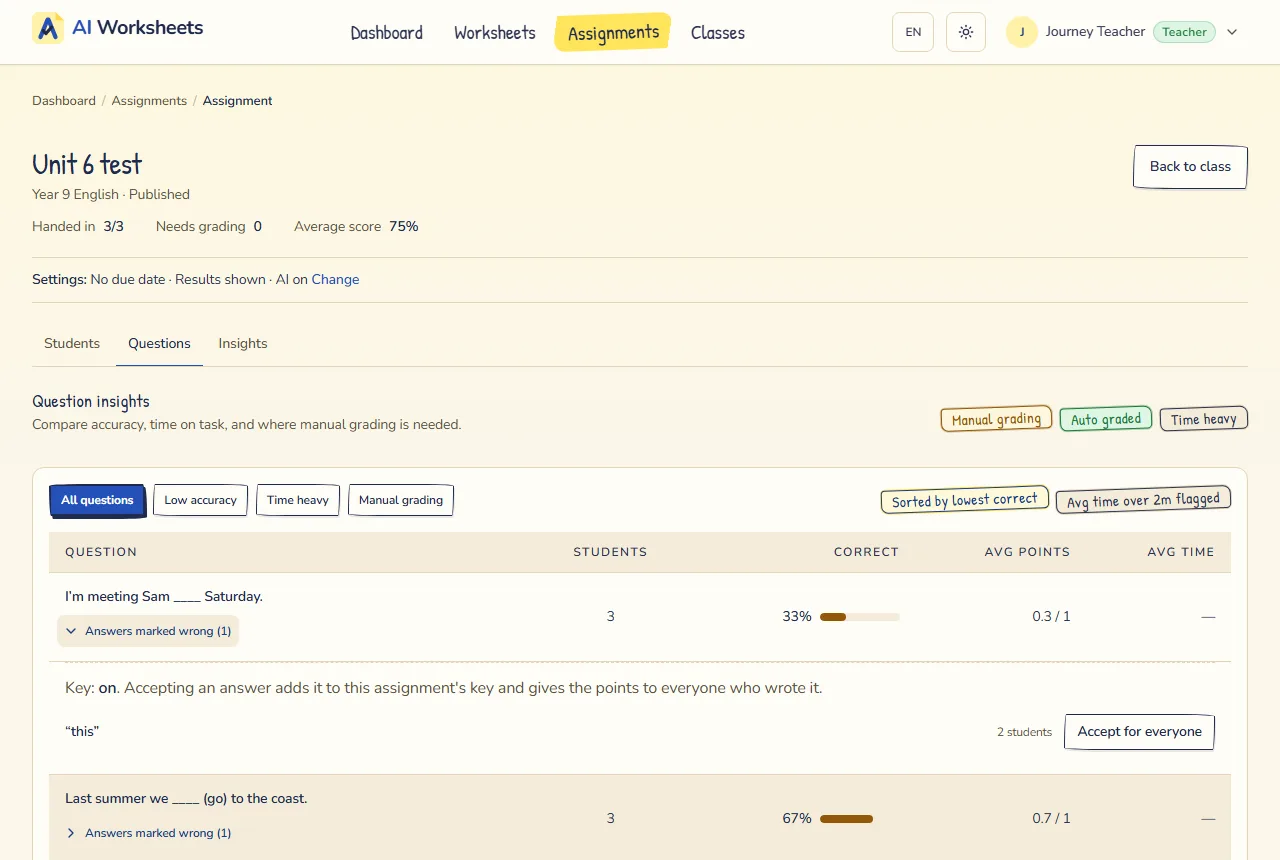
You can do the same from a student’s paper with Accept this answer for everyone. Change the key this way rather than by editing the worksheet: once students have started, an assignment keeps the version they were given, so editing the worksheet doesn’t change marks already given.
Let AI draft the open answers
Short open answers that don’t match your key can get a mark suggested by AI, which is on for every new assignment. Each suggestion says Waiting for you: nothing reaches the student until you accept it or change it. Once you have read them, Accept all AI marks on the assignment page accepts every suggestion at once.
For writing, AI can also draft a mark and a comment for the whole hand-in. Marking writing faster with AI shows how to set that up and check it. On the free plan, AI marking covers 50 hand-ins a month and 20 a day; past that, answers simply wait for you.
Move through the papers quickly
- Mark one question across the whole class rather than one whole paper at a time: your standard stays the same from the first student to the last.
- Write a comment only where it helps: Add comment on an answer, Add overall comment for the whole paper.
- Save & next saves and opens the next paper still to mark.
- Return to student sends one paper back; Return all graded sends back every paper you have finished.
Use the results to plan the next lesson
The marks are only half of what an exam tells you. On the assignment’s Questions tab, Question insights puts the questions the class found hardest first, with how many students got each one right. The Insights tab lists the Hardest questions too.
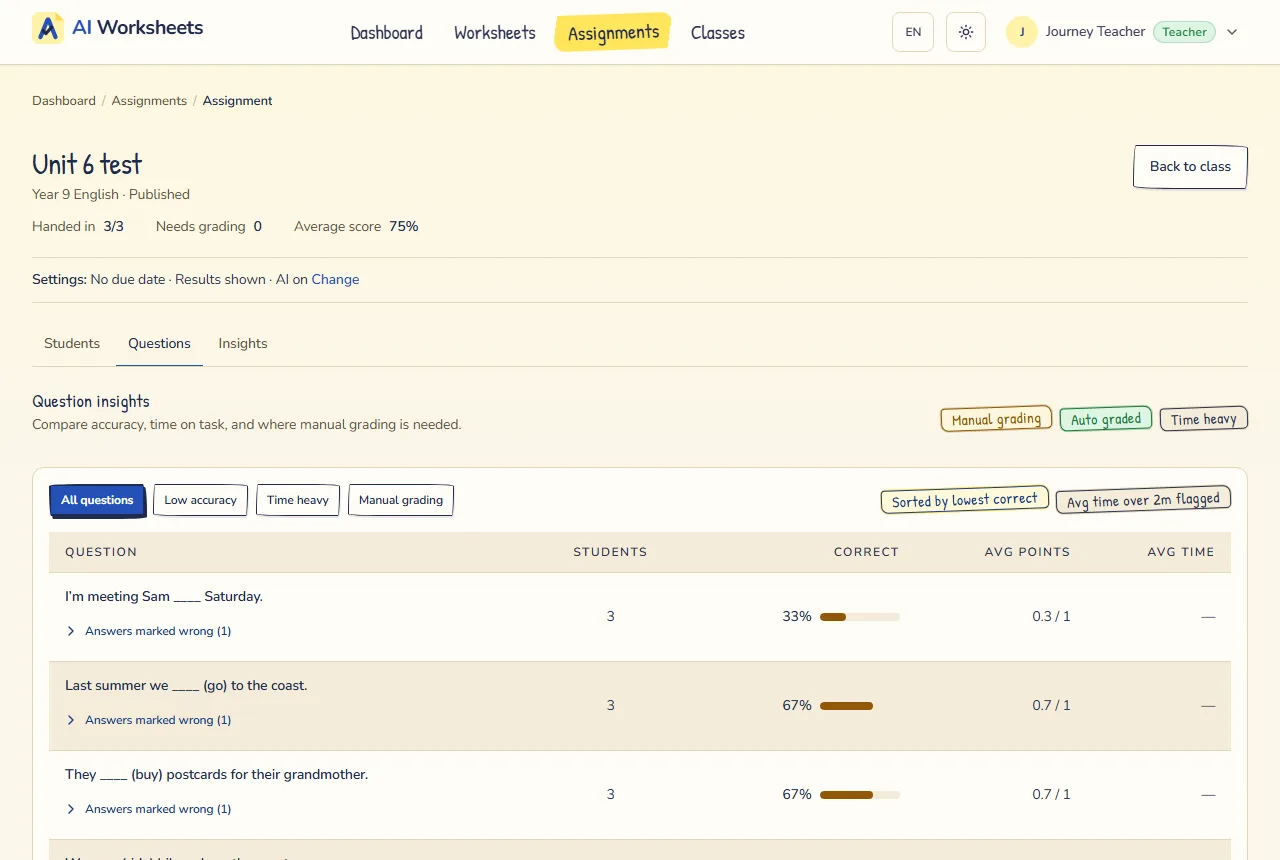
If half the class missed the same question, the problem is probably the teaching or the question, not the students. Go over it in class before the next unit, and reword the question if it was unclear.