How to make an online English test that marks itself
An online test saves the photocopying and most of the marking, but only if it is set up well. This guide walks through planning a fair test, building it in minutes, the settings that matter on test day, and what you get back when students hand in.
7 min read · Updated
In this guide
- How to plan a test that covers what you taught
- Three ways to build it: from your textbook, from a topic or by hand
- The settings that matter: mode, time limit, attempts, shuffling, results
- What students see on test day, on a phone or a computer
- What you get back: marks, the hardest questions, a CSV
Plan what the test covers
Start from the unit, not from the question types. List what students should be able to do by now, such as talk about the past or understand a short announcement, and give each point a few questions. A test for a unit usually mixes:
- Grammar and vocabulary: gap fills, multiple choice, sentence transformations.
- Reading: a short text with questions.
- Listening: a dialogue or an announcement with questions.
- A short piece of writing, if you want to see students use it all.
Twenty to forty minutes is enough for most units. Give more points to what matters more: a transformation that tests the whole structure can be worth two, a single word one.
Build it in minutes
You don’t need to type the test from scratch. In AI Worksheets there are three ways in, and you can mix them in one worksheet:
From your textbook
Upload the PDF of the unit’s review page or your own paper test. AI turns its exercises into interactive questions with their answers.
From a topic
Describe the topic and the level, choose the exercise types and how many questions you want. AI writes them, with the answers.
By hand
Add exercise offers 16 types, from multiple choice and gap fills to reading, listening and writing.
Then check every question and its answer in the editor, and set the points for each under Points. Typed answers ignore capitals, accents, punctuation and extra spaces by default; to be stricter on a short answer or a transformation, change it under Answer checking.
Set it up as a test
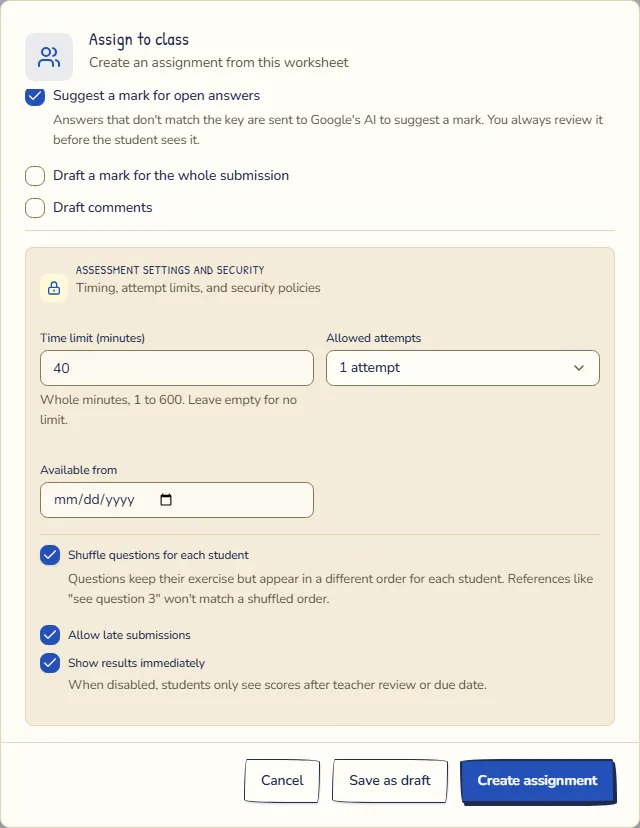
When you assign the worksheet to a class, choose Test as the mode: answers are checked after students hand in, not as they go. Set a due date, then open More options for the rest:
- Time limit (minutes): from 1 to 600. Students see the time left while they work.
- Allowed attempts: one is the default for a test.
- Shuffle questions for each student: each student gets the questions of every exercise in a different order. The options of a multiple-choice question are already shuffled for each student.
- Show results immediately: on by default. Turn it off if students should see their marks only once you return the work, or when the due date has passed.
- Allow late submissions: on by default, with an optional date when late submissions close.
What students see on test day
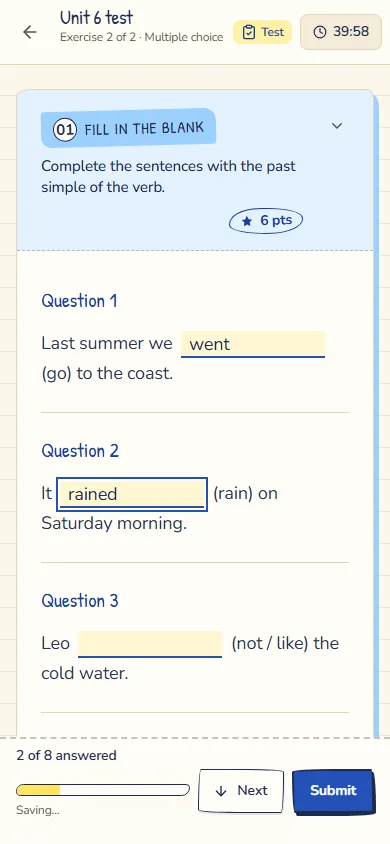
Students don’t need an email address: you can make their logins for them, or they join the class with a code. They take the test on a phone or a computer.
- A countdown, Time remaining, which changes colour in the last minutes.
- Their answers are saved as they go, so a closed tab or a dropped connection doesn’t lose them.
- When the time runs out with the test open, it is handed in with what they have written.
What you get back
Every answer that matches your key is marked the moment a student hands in. Open answers and writing wait for you, and AI can draft a mark for them that you check before anyone sees it: marking writing faster with AI shows how.
- Question insights, on the assignment’s Questions tab, lists the questions the class found hardest first. It is the best place to plan the next lesson.
- The class gradebook has Export to CSV, for your school’s records.
- With results shown straight away, students see the marks from your key when they hand in. Open answers, and anything AI drafted, reach them only when you return the work.
Need a paper copy for a student without a device? Under More actions in the editor, Download worksheet (PDF)… gives you the test to print, and Download answer key (PDF)… the answers.