How to make a listening activity with AI, from script to marks
Good listening material at the right level is hard to find, and recording your own takes an evening. This guide shows how to plan a listening task, let AI write and voice the dialogue, and give your students questions that mark themselves.
6 min read · Updated
In this guide
- How long the audio should be, and what students listen for
- Why you write the questions before the script
- How to get a two-voice dialogue from AI, and what to check in it
- Which settings help weaker listeners
- How the answers are marked
Plan what students listen for
A listening task works when students know what they are listening for. Decide two things before anything else:
- The situation: who is talking, where, and why. Ordering at a café, booking a room, two friends making plans. A real situation gives students a reason to listen.
- The job: the general idea (what are they deciding?) or specific details (a time, a price, a name). Most tasks have one gist question and a few detail questions.
Keep it short. One to two minutes is plenty for A2 and B1, and a 30-second exchange works well for beginners. Students can listen to a short clip twice and still have time to answer.
Write the questions first
With recorded material you write questions about what is already there. When AI writes the dialogue, you can turn that around: write the questions you want to ask, and have a script written that holds the answers.
- Put the questions in the order the answers will come.
- Use multiple choice for details students might mishear: the wrong options can be words they hear too.
- Use true or false for quick checks of what someone says or wants.
- Use short answers or fill in the blank for a word or a number they have to catch and write.
Let AI draft the dialogue
In AI Worksheets, add a listening exercise with your questions. Under the audio player, Draft with AI opens the dialogue generator:
Choose the format and the language
A conversation between two speakers or a monologue, such as an announcement, in the language you teach.
Give it a topic
Optional, but it helps: "two friends choosing a film", "checking in at a hotel". Then pick a voice and press Draft Script with AI.
Read and edit the script
AI writes it from your instructions and questions, at your worksheet’s level, so the answers are in it. Change any line you like before you make the audio.
Make the audio
Synthesize & Attach Audio turns the script into speech and attaches it to the exercise. In a conversation, each speaker gets a voice of their own.
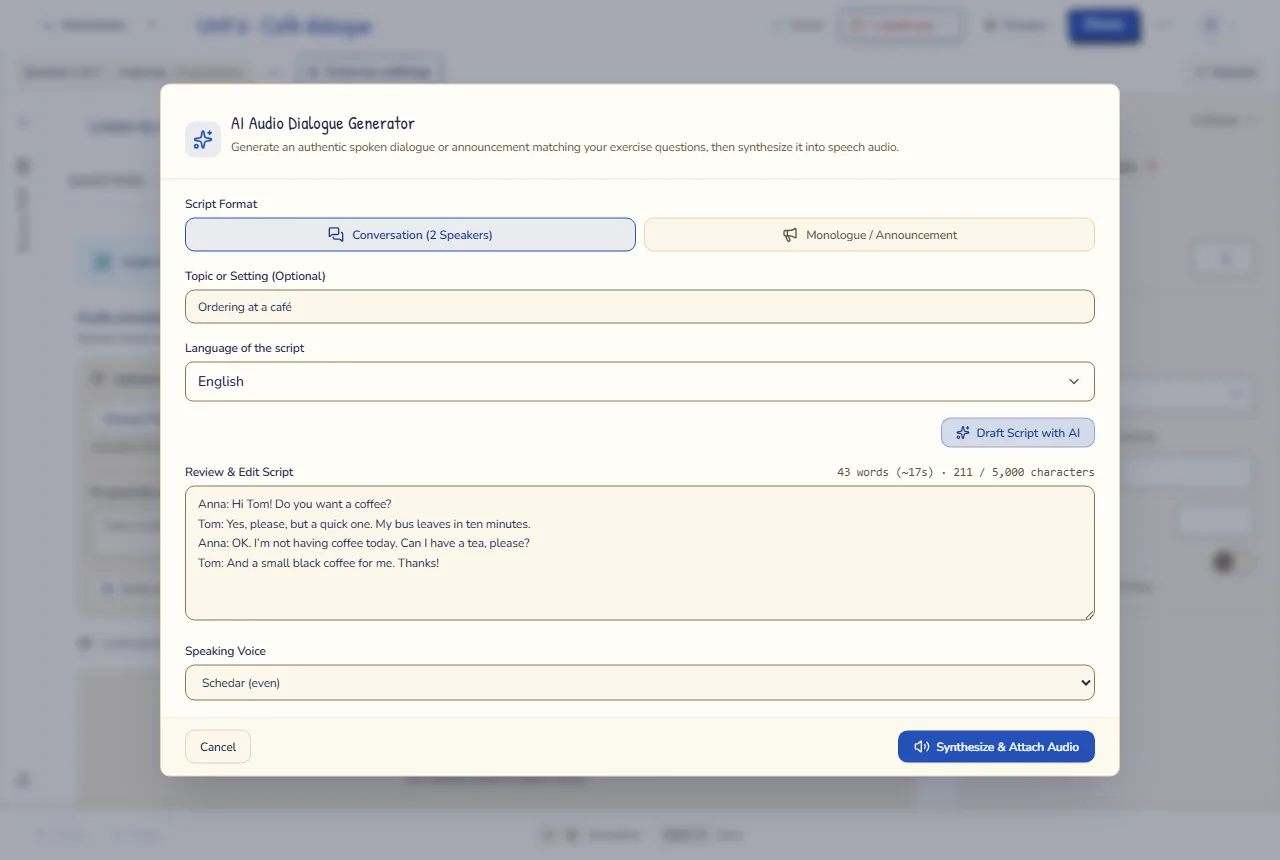
Two voices need a script where every line starts with the speaker’s name and a colon, and exactly two people speak. AI writes it that way; keep the names when you edit. If you already have a recording, Upload audio takes MP3, WAV or OGG files up to 10 MB.
Check the script before you make the audio
Changing a script is free; making the audio again uses another AI clip. So read it once with these questions in mind:
- Is it at your students’ level? Swap words they haven’t met yet, and shorten long sentences.
- Is each answer said clearly, once? If the answer is a time, make sure no other time sounds like the right one by accident.
- Does it sound like people talking? A "well", an "oh, sorry" or someone changing their mind makes it real, and gives a multiple-choice question its wrong options.
On the free plan, AI speech covers 10 uses a month and 5 a day: drafting a script is one, and making its audio is another.
Settings that help weaker listeners
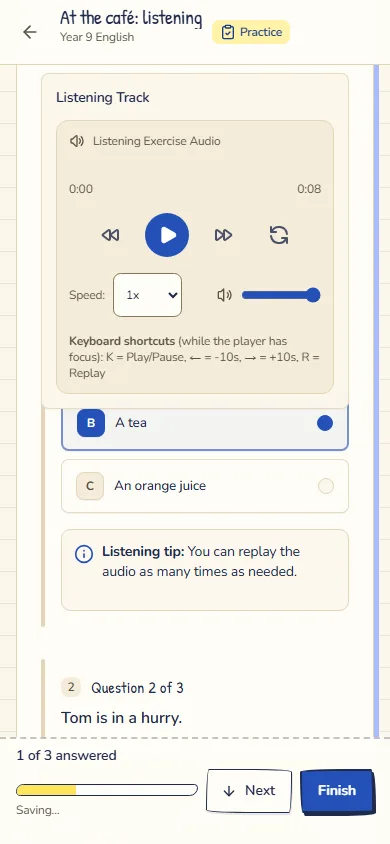
- Speed: students can slow the audio down, or speed it up, on their own player.
- Allow the transcript: turn it on for students who can’t hear the audio, or for a first lesson at a new level. Leave it off when you want to check listening on its own.
- Practice or Test: in Practice students check each answer as they go and can listen again; in a Test everything is marked when they hand in.
How the answers are marked
Multiple choice, true or false and written answers that match your key are marked straight away, with your rules. Capital letters don’t count against the student. Ask for one word or one number where you can: "What time does the film start?" (seven) leaves less room for doubt than "What are their plans?"
When the assignment’s AI is on, a written answer that doesn’t match your key gets a suggested mark from AI once the student hands in. It waits for you to accept or change it. Marking writing faster with AI shows how those suggestions work.